
Getting Started
Create a collaborative thinking space for you and AI in three steps with Dessix.
Step 1: Create a Topic
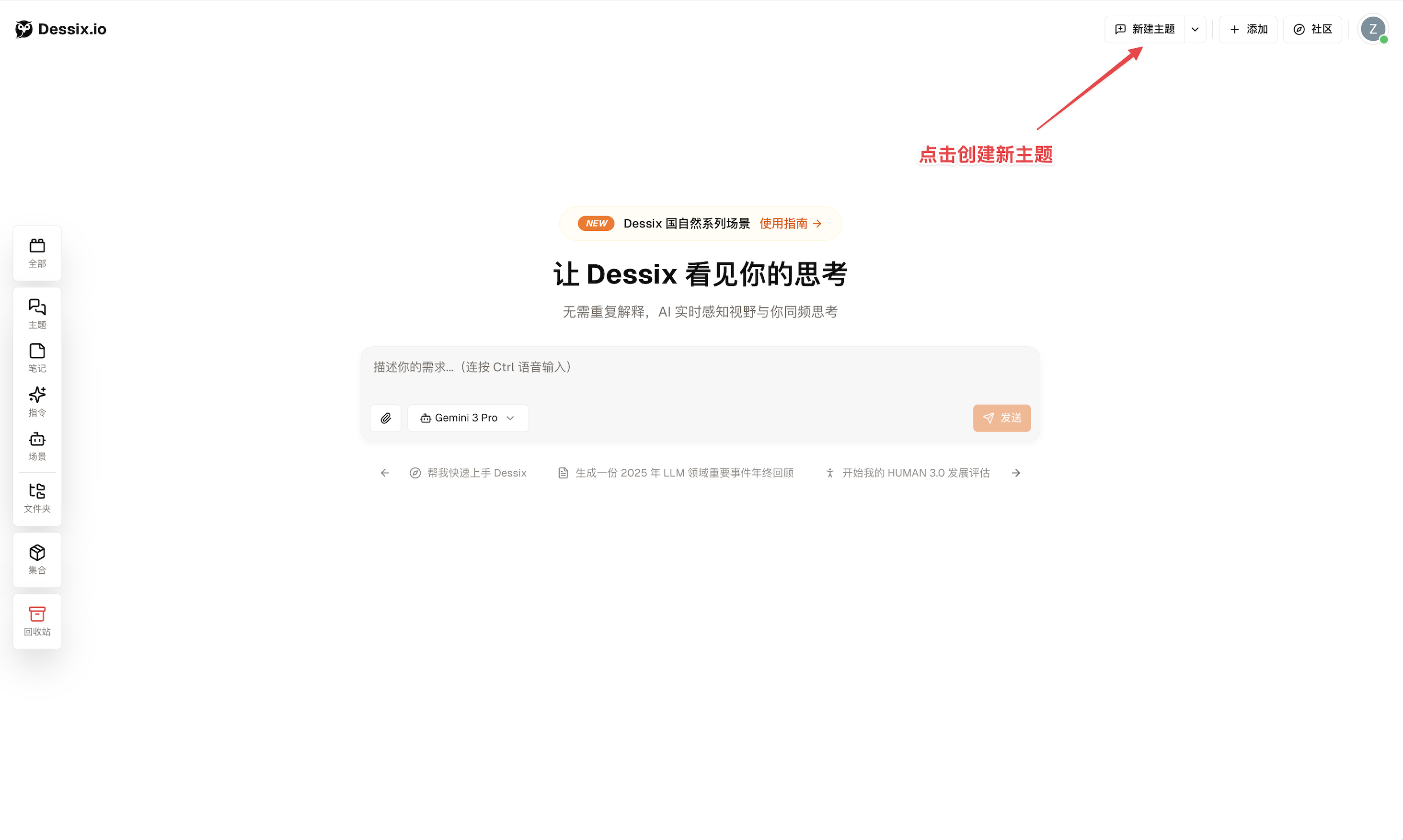
Click New Topic in the upper right corner to create a Topic for your task.
Step 2: Add Content
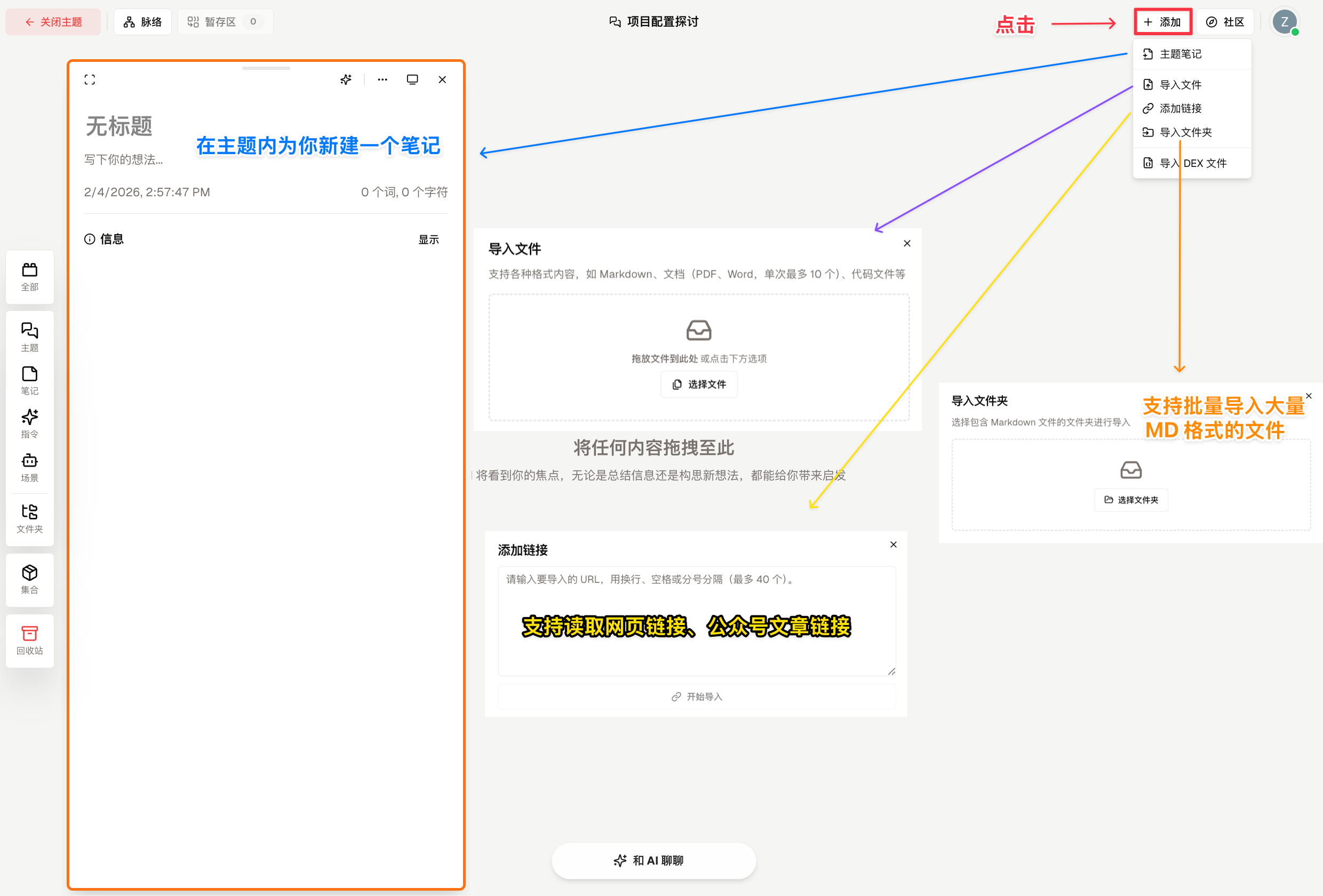
Add your materials to the Topic so AI can see what you're thinking about.
Step 3: Start Chatting
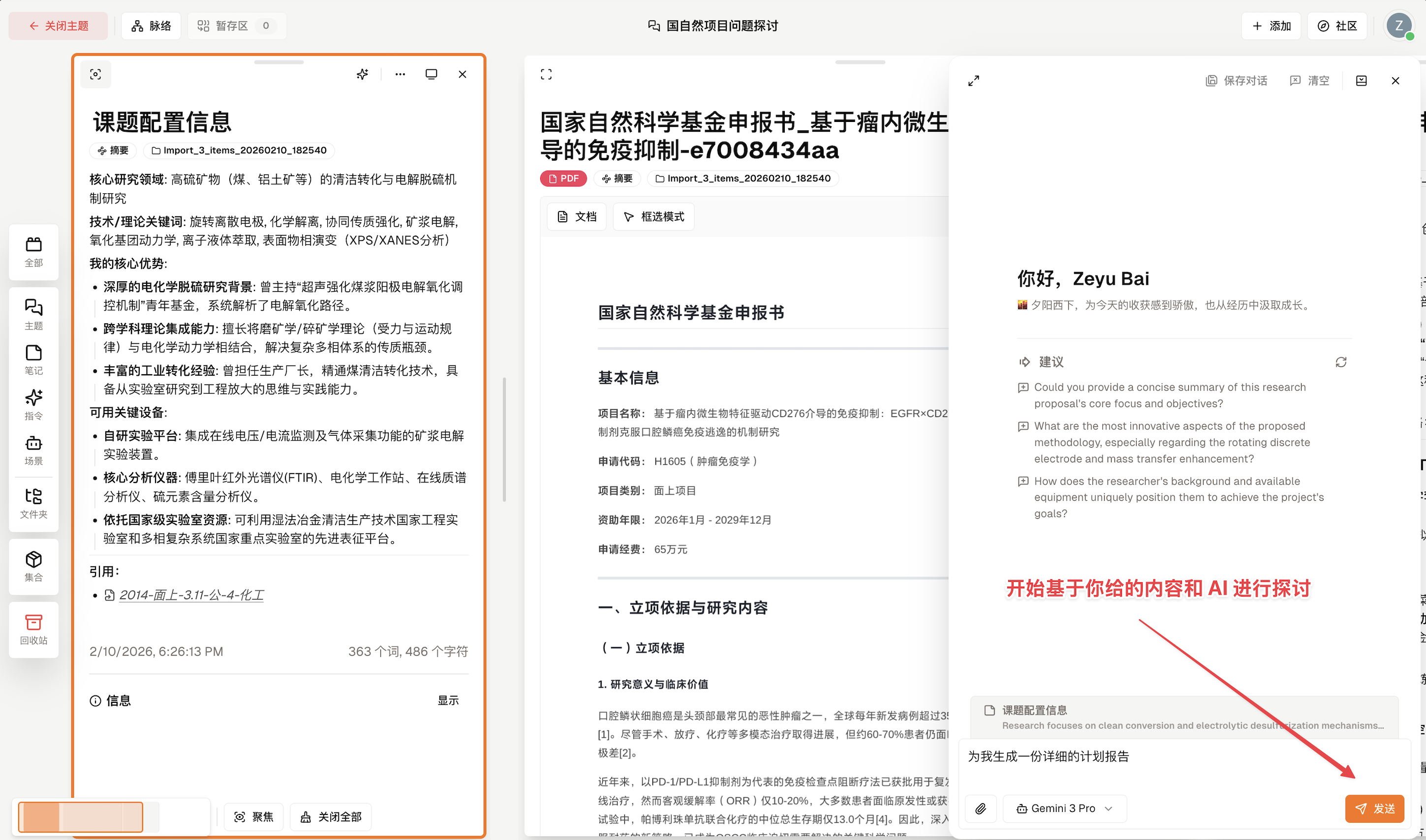
Click the chat box to ask AI questions. AI will answer based on all the content you've added.
Advanced: Make AI Understand You Better
Using Scenes and Actions
Want AI to assist you in a specific role or way? Try Scene and Action:
Scene: Continuous conversation environment (e.g., "Academic Research Assistant", "Novel Writing Mentor")Action: One-time tasks (e.g., "Translate to English", "Generate Meeting Minutes")
Click Dessix Community in the upper right (or press Control+M) to browse and add Scenes / Actions.
Precise Context Control
Sometimes you only want AI to focus on specific content:
- Focused Block: When editing a Block, Dessix automatically highlights it as your attention center. AI's response to this content is most responsive and specific.
- Pinned Block: Click the pin button in the upper left corner of a
Block. It will be treated by AI as an authoritative reference or long-term guideline that cannot be ignored. - @Mention: Type
@in the conversation to link specific notes and tell AI what to focus on. See Mention for details. - Selection Chat: Select any text in a note to discuss it directly with AI.
- Focus Single Content: Click the focus button in the lower left to clear all content and keep only the currently viewed
Block. - Clear Canvas: Click the clear button in the lower left to empty the
Topiccanvas and start arranging context content from scratch.